Maya
Busy team lead
Workspace / Team
Your team
MMaya ChenWorkspace owner
1 of 1 seats used
No seats available
Critical Friends
Tell Critical Friends what your users need to accomplish, and know whether they still can after every change. Crities, synthetic users with their own goals and situations, try those jobs in your product and your AI assistants in real browsers. What gets in their way becomes findings you can act on and retest.
01 / Your product
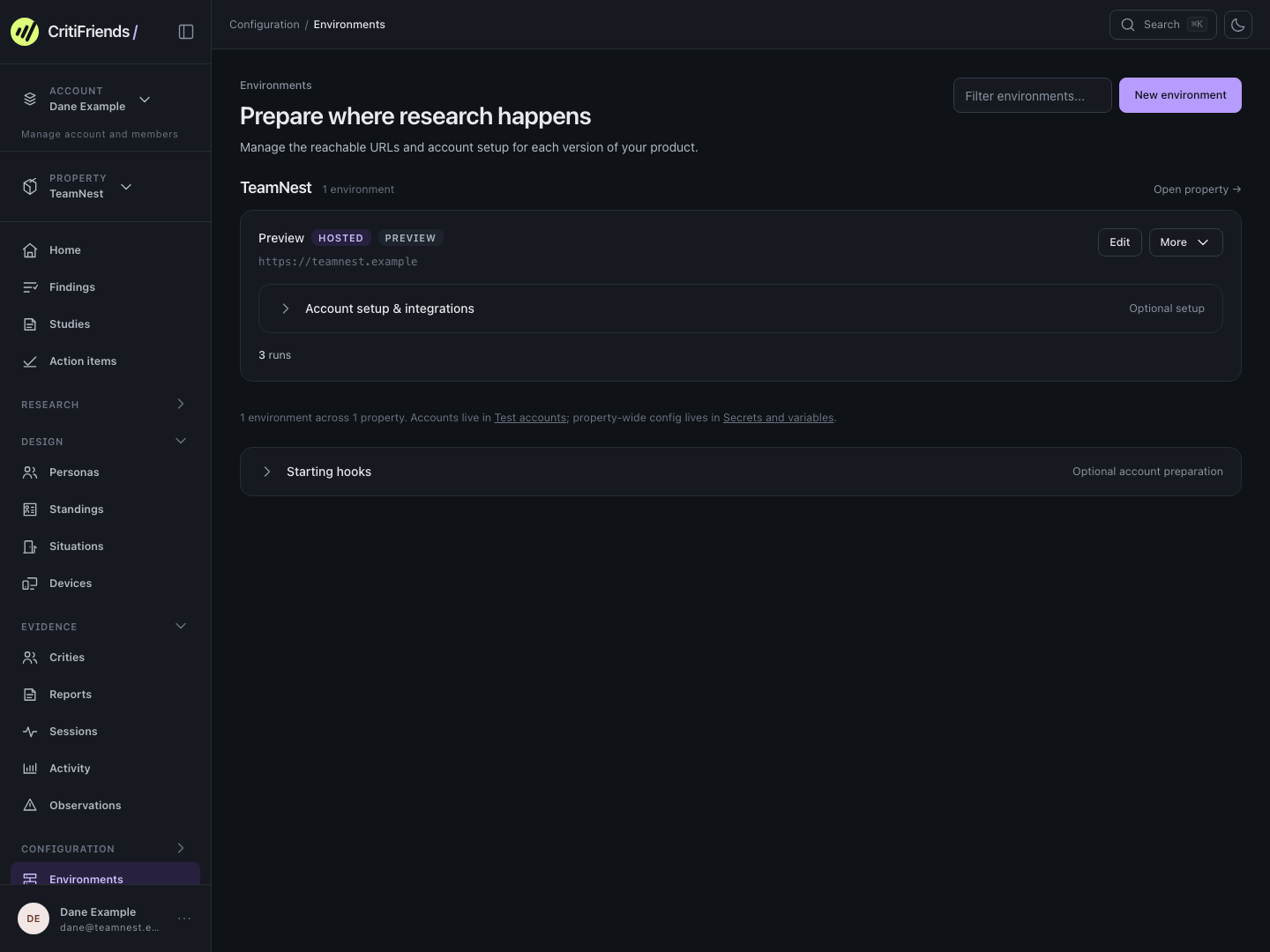
Add the site, app, checkout or assistant you want tried, an address Critical Friends can reach, and the first job your users come to do.
02 / Personas
Describe the people you build for in a sentence, and Critical Friends drafts the perspectives. Each Criti attempts the job as one of them.
AI persona
Busy team lead
Runs a small design studio. Comfortable with project tools, but rarely has time to explore settings. Brings contractors into projects as work comes in.
Design the perspective
Describe the background, goals, habits, and concerns that shape how someone uses your product. Those details give a Criti reasons to explore, hesitate, or ask questions.
Can someone who needs limited access for a contractor find the right option and understand the cost?
03 / Study
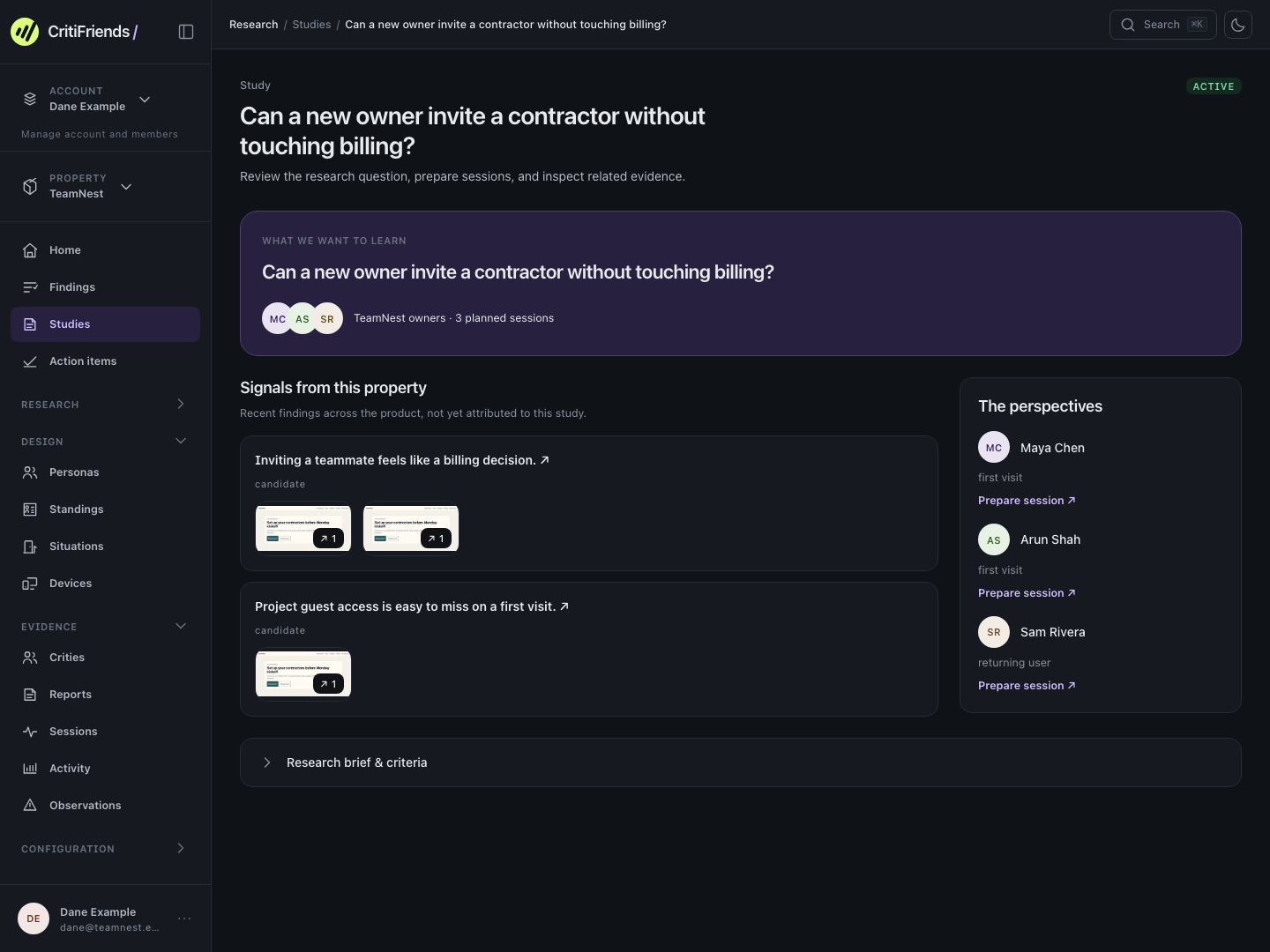
A study groups the sessions worth running again. It explores several questions at once: can people finish their tasks, do the choices make sense, and where do they get stuck. Run it once to explore, then keep it covered as the product changes.
What we want to learn
Typed by you, or handed to your AI agent as one prompt.
Intent
Invite a contractor to one projectPulled from the question
Perspectives
Sessions
3 plannedOne per perspective, run in parallel in a real browser
Illustrative planning sequence. Personas and situations come from the TeamNest example; the study screen shows the same plan in the workspace.
The same plan on the study screen: the question, the three perspectives, and their planned sessions, ready to prepare and launch.
04 / Sessions
Each session is one Criti attempting one job in a real browser. Play it back to see every hesitation beside the click that caused it.
Your workspace
Keep your next launch moving with everyone in one place.
Illustrative session with a fictional app and quotes.
Three perspectives, three sessions. See how each Criti approaches the experience.
Busy team lead
1 of 1 seats used
No seats available
Workspace admin
Access to workspace projects
Only the projects you share
Keep billing and settings private.
Returning teammate
Access to this project only
05 / Observations
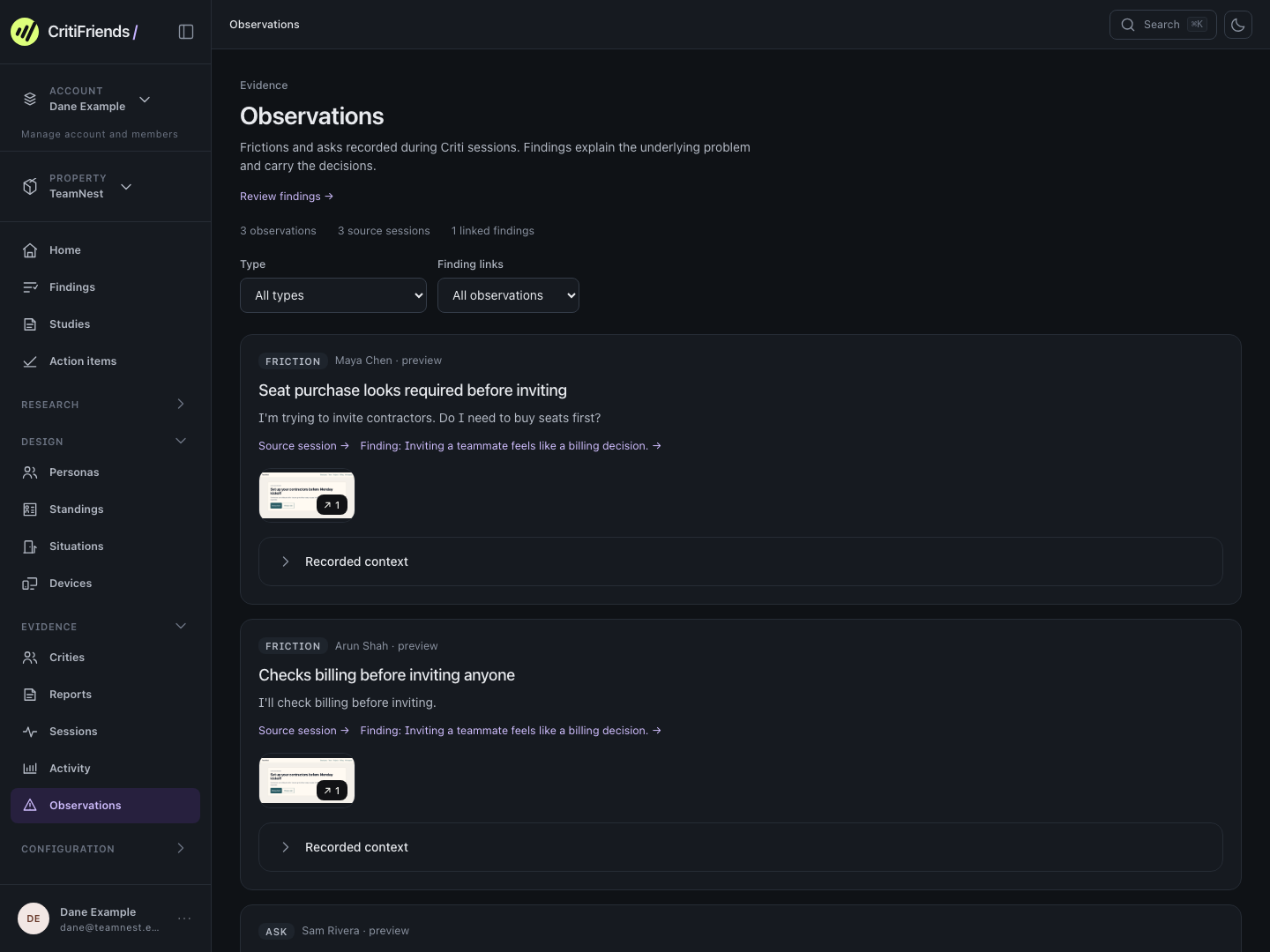
Every hesitation and every “I wish” becomes an observation, linked to its moment in the session.
06 / Findings
Your triage agent rolls related observations into findings, then tracks how often each one happens, when it was first and last seen, and whether it comes back after a change.
Finding · Contractor invitation
New owners meet seat pricing before they understand guest access. It first appeared after seat pricing moved onto the team page, and the retest after the fix came back clear.
of 414 before the fix
5 of 8 personas
after the seat pricing change
before the fix
Sessions that hit it✓Clear!Some sessions✕Many sessions
9 runs · 474 sessions · 38 Crities · Staging · Counts reflect session coverage, not the share of real customers affected.
07 / Act & retest
Pick the findings worth solving and make the change, or hand it to your AI agent. When you feel the problem is addressed, queue the finding for retest. Close it when the retest evidence shows it is resolved, or keep it open if the problem remains.
Finding · Queued for retest
Change made: the invite screen now explains free guest access before seat pricing.
Make the change yourself or hand it to your agent. When you feel the problem is addressed, queue the finding to check the updated experience.
New sessions try the same job. See whether the same friction shows up, and for whom.
Keep the retest evidence with the finding. If the problem remains, keep the finding open for further work.
08 / Your agent
Every screen is also reachable over MCP, so the agent you already use can run the whole loop, from setup to implementing fixes.
You choose the jobs worth covering, decide which findings are worth acting on, and set the scope your agent may work within. Everything else can run without you.
Getting started
No. Tell us about your product and the jobs people come to do, and we’ll propose the perspectives and situations to cover them. Crities explore through the visible cues in your product, without a prescribed sequence of clicks.
Use a public URL or a tunnel to a local or private environment. For signed-in experiences, your team provides test accounts with suitable permissions and realistic data. Your development agent can help prepare those accounts and connect the environment.
Related observations build up under the finding. You can see how many sessions and personas encounter it, when it first appeared, and when it was last observed. When you feel the problem is addressed, queue it for retest. Close it when the evidence supports resolution; otherwise, keep it open.
You can defer it, mark it as noise or a misinterpretation, or explain why it conflicts with your strategy. Your reasoning stays with the finding and helps improve future triage.
Use Crities continuously and real users where they matter most. Crities surface friction and questions between research rounds, before real users meet each change. Real conversations and product data remain essential for understanding demand and validating broader conclusions.